Choose Your QR Type
Start by selecting the type of QR code you want to create. AuraQR supports different options such as URL, Text, Wi-Fi, WhatsApp, UPI Pay, Contact, Email, Phone, SMS, Location, Event and Socials.
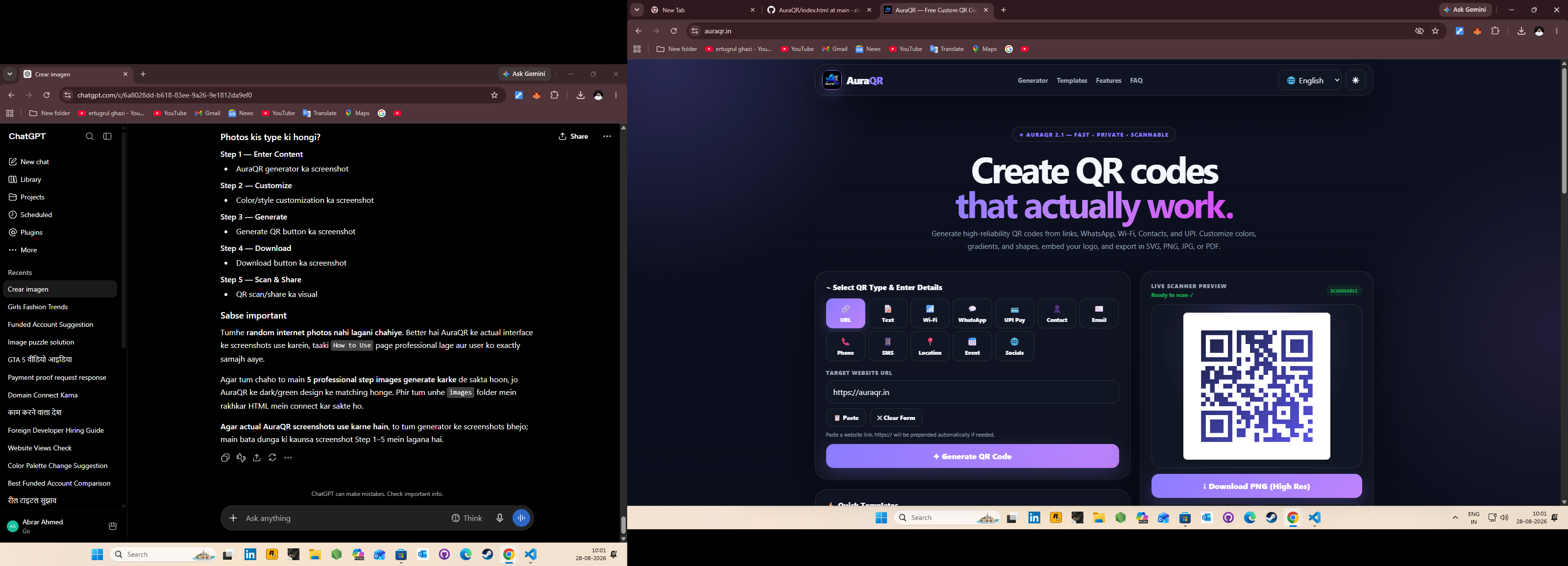
Select a QR type and enter your information.
Customize Your QR Design
Customize the appearance of your QR code. You can adjust colors, gradients and module styles to create a QR code that matches your brand or project.
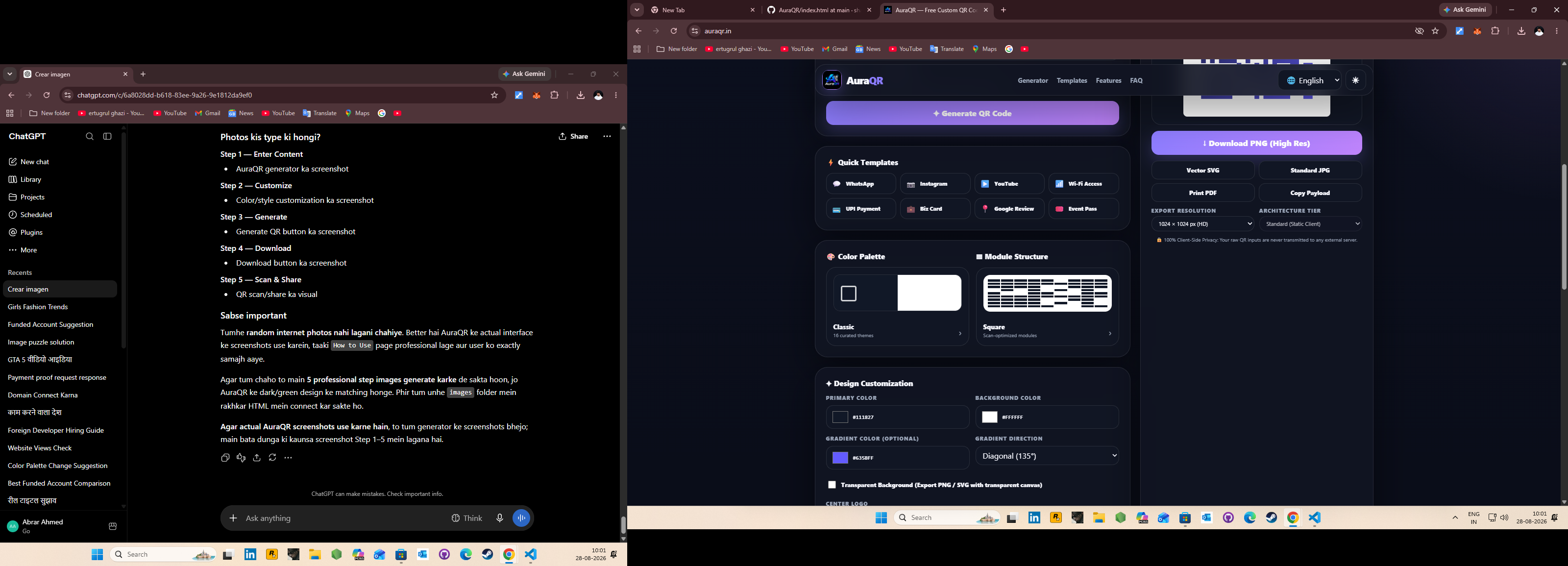
Customize colors, gradients and module structure.
Add Logo & Advanced Settings
Add a center logo to your QR code and adjust advanced options such as error correction, margin and render size.

Add your logo and adjust QR code settings.
Generate & Download
Once your QR code looks the way you want, generate it and choose the export format that fits your use case.
Generate QR Code
Click the Generate QR Code button to create your QR code.
Download PNG
Download a high-resolution PNG when you need a standard image format.
Export SVG
Use SVG when you need scalable vector artwork.
Print PDF
Use PDF when preparing QR codes for printing.
Scan, Test & Share
Before publishing or printing your QR code, scan it with a smartphone camera and confirm that it opens the correct destination.
📱 Scan
Open your phone camera and scan the QR code.
✓ Verify
Make sure the QR code opens the correct content.
📤 Share
Share your QR code digitally or use it in printed materials.
For physical use, test the printed QR code before distributing it.
Ready to create your QR code?
Start creating a customized QR code with AuraQR.
Create QR Code